How to Easily Try a Complete Local LLM Agent
Anyone can now experiment with local large language models without relying on cloud services or third-party providers. Using Ollama for model serving and OpenCode as an open-source AI coding agent, you can run generative AI directly on your machine.
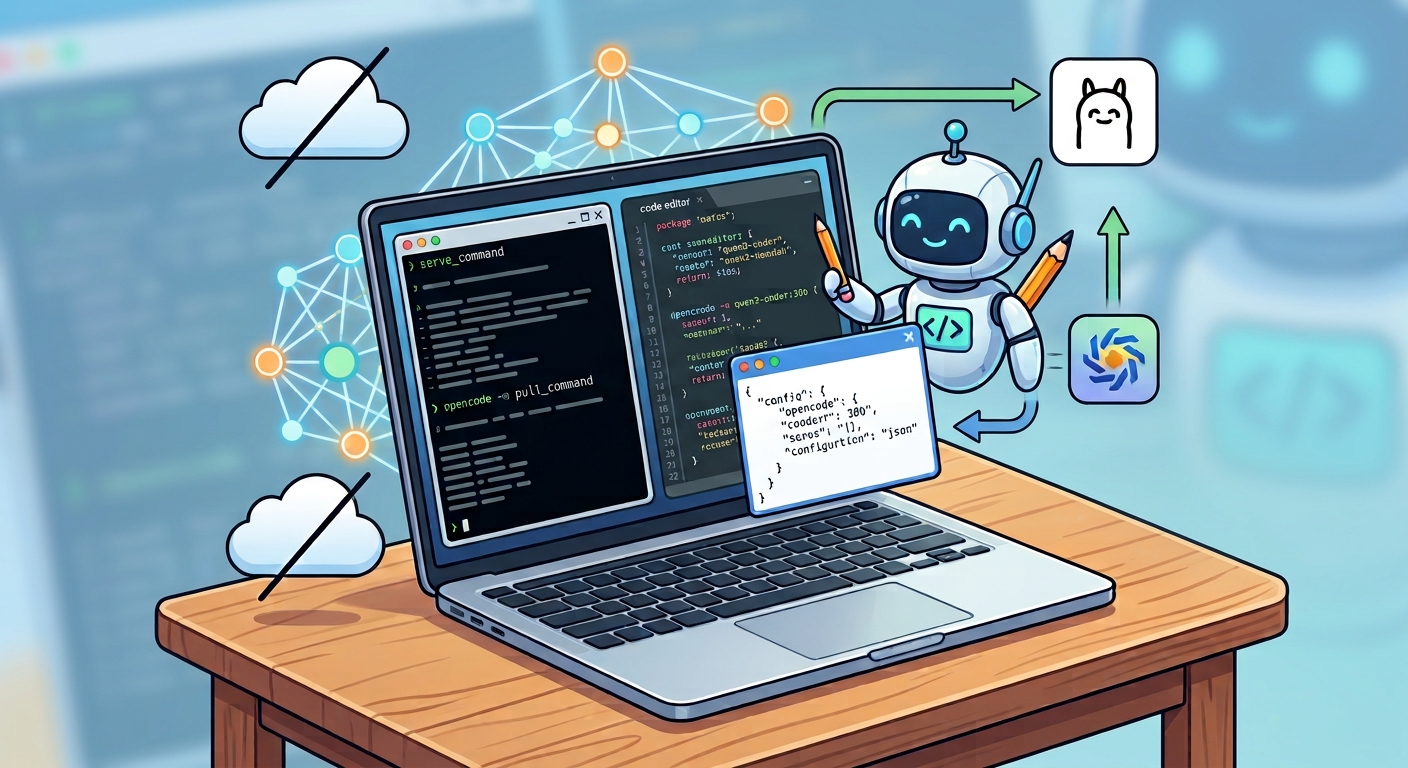
Setup Steps
-
Download and install Ollama from ollama.com/download. This provides local model hosting capabilities.
-
Start the Ollama server by running
ollama servein a terminal. -
Pull a model you want to try locally. For this guide, we’ll use
qwen3-coder:30bwhich offers multimodal understanding helpful for coding tasks. Pull it with:ollama pull qwen3-coder:30b. -
Download OpenCode from opencode.ai/en/download. This is an open-source AI coding assistant.
-
Create a configuration file named
opencode.jsonin a working directory with the following content:
{
  "$schema": "https://opencode.ai/config.json",
  "provider": {
    "ollama": {
      "npm": "@ai-sdk/openai-compatible",
      "name": "Ollama",
      "options": {
        "baseURL": "http://127.0.0.1:11434/v1"
      },
      "models": {
        "qwen3-coder:30b": {
          "name": "Qwen3 coder 30B",
          "tools": true,
          "options": {
            "num_ctx": 32768
          }
        }
      }
    }
  },
  "model": "ollama/qwen3-coder:30b",
  "permission": {
    "bash": {
      "*": "ask",
      "cat *": "allow",
      "grep *": "allow",
      "rm *": "deny",
      "ls *": "allow",
      "find *": "allow",
      "cut *": "allow",
      "awk *": "allow",
      "sed *": "allow",
      "glob *": "allow",
      "head *": "allow",
      "sort *": "allow",
      "uniq *": "allow"
    },
    "webfetch": "allow",
    "read": {
      "*": "allow"
    },
    "edit": {
      "*": "ask"
    }
  }
}
- Launch OpenCode with:
opencode -m qwen3-coder:30b
You can now enjoy local generative AI without any cloud dependencies or costs.